Stay in touch everywhere you go!
Make calls, send and receive iMessage, stream music — right from your wrist.
Activate your Apple Watch in 3 easy steps


Powered by Dhiraagu OneNumber, stay seamlessly connected with Dhiraagu
Make calls, send and receive iMessage, stream music — right from your wrist.
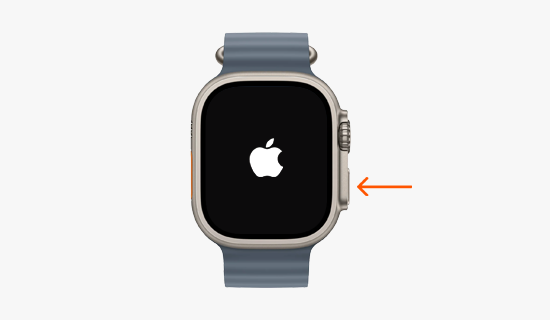
Power on your Apple Watch
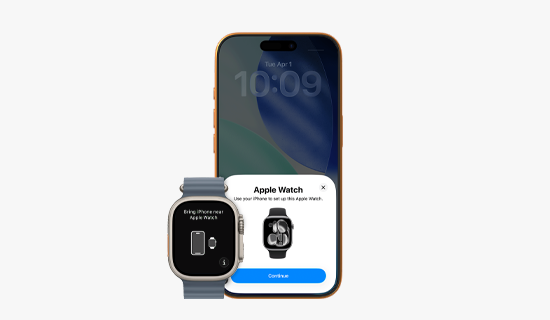
Open the Watch app on your iPhone
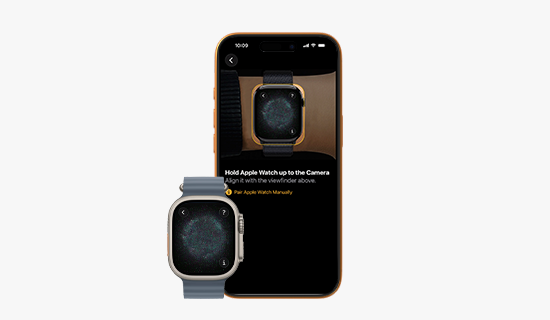
Follow the prompts
Apple Watch Ultra 3 - 49mm
Full Price
MVR 19,898
12 Months Installment
MVR 4,999
(Advance)
+MVR 1,409
/ Month
There is no Fibre Broadband availability for your address.
Your smartphone must be running iOS 11.2.5 or later or Android 5.0 or later.
To check or download the latest software version on your smartphone, go to Settings > General > About and follow the prompts to update to the latest carrier settings.
Your Apple Watch Series (GPS + Cellular) must be running watchOS 4.2.2 or later.
Customers are encouraged to purchase their Apple Watch from Dhiraagu.
For watches purchased in other countries, please click here to check whether your Apple Watch model is supported.
Yes. Your Apple Watch (GPS + Cellular) can work independently using a cellular connection, even if your smartphone is not nearby or is switched off.
When your paired smartphone and Apple Watch are close to each other, the watch will automatically connect via Bluetooth. If your smartphone is not nearby or Bluetooth is turned off, your Apple Watch will connect to the cellular network and use the same mobile number as your paired smartphone.
To use your Cellular Watch in standalone mode, ensure Wi-Fi and Bluetooth are turned off on the watch and that cellular mode is enabled.
Look out for the dot icon (…) at the top left corner of your watch status panel. This indicates that your watch is connected to cellular.
The green dot icon will only appear if your iPhone is not within close range of your Apple Watch (GPS + Cellular).
You will need to unpair your previous Cellular Watch before activating your new watch.
To unpair, go to Settings > Connections > Mobile Plans and select “Unpair” for the existing connection. You may then follow the steps to add a mobile plan from the Watch companion app on your smartphone.
If you have received a confirmation SMS for successful Dhiraagu OneNumber service, test the connection on your Apple Watch (GPS + Cellular) by turning off Bluetooth on your smartphone. Restart the Apple Watch.
If the connection still fails, verify that your eSIM is present by going to:
Apple Watch > Settings > About > Device > ICCID
If you see a string of digits under ICCID, your eSIM is present.
Also check under Connections > Mobile Networks and ensure the option is set to Auto on/off or Always on. Also make sure that mobile data is enabled.